Our NabWP WordPress Manager brings the day-to-day tools for your managed WordPress website into your client area. It helps you move from checking a problem to taking the next useful action without having to remember several separate administration addresses. Each website has its own workspace, so first confirm that you have selected the correct domain.
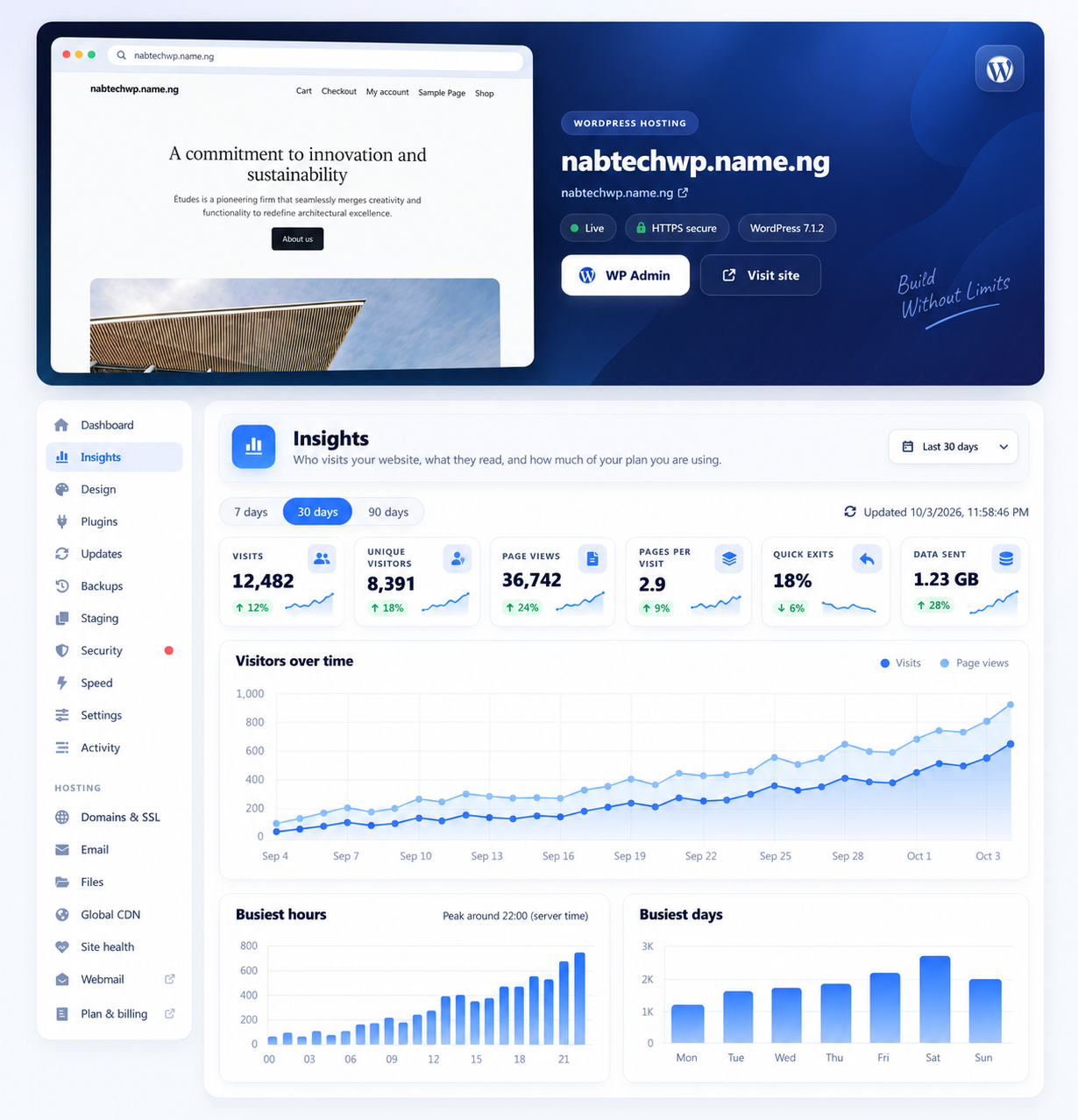
The NabWP WordPress Manager, as featured on our managed WordPress hosting page.
IN THIS ARTICLE
01 Open the correct service and website
- To get started, sign in to your client account, open your services and select your NabWP hosting service.
- Open the WordPress management area and choose the website you want to work on.
The precise navigation can vary with the account view, but the selected service and website should always be clear before you make changes.
02 Find the tools for the work you need
The workspace can include the following sections. Available sections reflect the tools enabled for that website and hosting plan.
- Website overview and reporting: Dashboard, Insights and Activity.
- AI creation and technical help: AI website and AI Engineer.
- Design and software: Design, Plugins and Updates.
- Maintenance and recovery: Automation, Backups, Staging & clone, Security and Speed.
- Website preferences: Settings.
For example, Backups helps you save and recover website data, while Activity helps you review recorded changes. The AI website tools focus on creation and content, and the WordPress AI Engineer helps investigate and carry out supported technical work.
You can also use the WordPress administration login provided for the selected website. WordPress admin remains useful for editing posts, managing store products and configuring individual plugins. The NabWP workspace complements these familiar WordPress screens.
03 Example: prepare a form-plugin update from the Manager
Suppose the Contact page works today and a form-plugin update is available. Use the WordPress Manager to organise the maintenance task around the selected website, then use WordPress administration for the plugin’s own settings where required.
In Plugins or Updates, record the present and proposed versions. In Backups, confirm a recent recoverable copy. Where available, use Staging & clone to test the change at the clearly labelled staging address. Isolate outgoing mail there and submit one test form to an approved test inbox. Review Activity alongside your change notes after the operation.
Expected result: The maintenance record identifies the domain, tested version and successful form result. The live update follows that reviewed scope, and you verify the actual message delivery rather than relying only on an “updated” badge. Missing Manager sections are checked against the service’s enabled tools.
Why is a WordPress Manager tool missing?
If a section is missing, check that you opened the correct active NabWP service and website. Tell our support team which domain and tool you expected to see. We can help distinguish an account permission issue, an unavailable integration or a feature that is outside your selected plan.
04 Use the current WordPress navigation
- Select the NabWP service and website, then open Manage WordPress.
- Choose a task-focused area such as AI website, AI Engineer, Plugins, Updates, Backups, Staging & clone, Security, Speed or Activity.
- Use the selected website's WordPress administration login when the task needs a plugin's own settings or ordinary content editing.
The manager and WordPress administration are different interfaces. A setting saved in one still affects the same installation, so avoid conflicting edits in several open sessions. If the website is not ready, complete its setup or report the installation state before attempting a redesign.